Article Category

분류 전체보기 (108)
나의 이야기 (52)
Study - Programming (39)
Study- MSC (11)
Study - ETC (0)
Project (3)

Recent Comment

Recent Trackback

Calendar

«   2008/08   »
          1 2
3 4 5 6 7 8 9
10 11 12 13 14 15 16
17 18 19 20 21 22 23
24 25 26 27 28 29 30
31            

Archive

  • Total45,125
  • Today25
  • Yesterday33
  1. 2008/01/25
    Chatting (1)
  2. 2008/01/17
    File Backup
  3. 2007/12/25
    FindFIle 프로그램 (1)
  4. 2007/12/25
    FileSystem Class - 미완성
  5. 2007/12/22
    간단한 문자열 토큰 나누기
  6. 2007/12/21
    간단한 계산기 프로그램
  7. 2007/12/13
    GDI+ 연습 - Graphics 객체를 얻기 위한 여러가지 방법
  8. 2007/11/26
    윈폼 이벤트 다루기 (2)
  9. 2007/11/26
    MDI 폼 예제
  10. 2007/11/10
    하고 싶은게 너무 많아 감당을 못할때
Chatting 프로그램

개발자 : 양희철
개발 기간 : 2008.1.01~2008.1.19(미완)
개발 환경
- 개발 운영체제 : Windows XP Pro
- 개발 IDE : Visual Studio 2005
- 사용 언어 : C#(.NET Framework 3.0)

  아.. 군대 때문에 어쩔수없이 미완으로 남겨두는 프로젝트이다. 다중 사용자 채팅 프로그램으로, 서버 한 대에 여러 사람이 접속해서 서로 채팅을 한다.

  처음으로 만들어 보는 다자간 채팅 프로그램이라 많이 미흡하다. 일단 채팅 자체는 되는데, 방장의 권한 및 유저 리스트를 구현하지 못하였다.

Chatting.zip

채팅 프로그램 소스

이올린에 북마크하기(0) 이올린에 추천하기(0)
Trackback 0 and Comment 1

File Backup 프로그램

개발자 : 양희철
개발 기간 : 2007.12.17~2007.12.28
개발 환경
- 개발 운영체제 : Windows XP Pro
- 개발 IDE : Visual Studio 2005
- 사용 언어 : C#(.NET Framework 3.0)

  예전에 작은아버지께서 한번 있었으면 좋겠다고 말씀하셨었는데, 처음엔 안하려다가 시험 기간 끝나고 방학 시작하면서 뭘 할까 하다가 급하게 공부하면서 만들어 보았다.

  기능은 간단하다. 한 개 또는 복수 개의 파일을 다른 드라이브로 그 경로까지 똑같이 복사해주는 프로그램이다.
  예를 들면 C:\My Doc\abc.txt 파일을 D:\에다가 복사하고 싶으면 D:\My Doc\에 abc.txt라는 파일이 똑같이 복사된다.


사용자 삽입 이미지

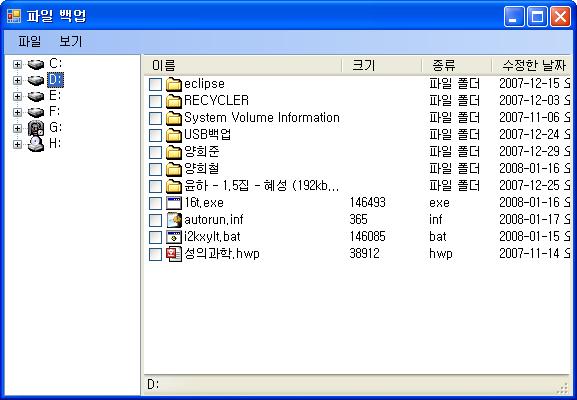
메인 화면


메인 화면이다. 기본적으로 탐색기와 비슷한 형태를 가지고 있다. 위의 창에서 폴더 혹은 파일을 선택한 후 오른쪽 버튼을 눌러 나온 팝업 메뉴에서 백업을 누르면 백업 화면이 나온다.

사용자 삽입 이미지

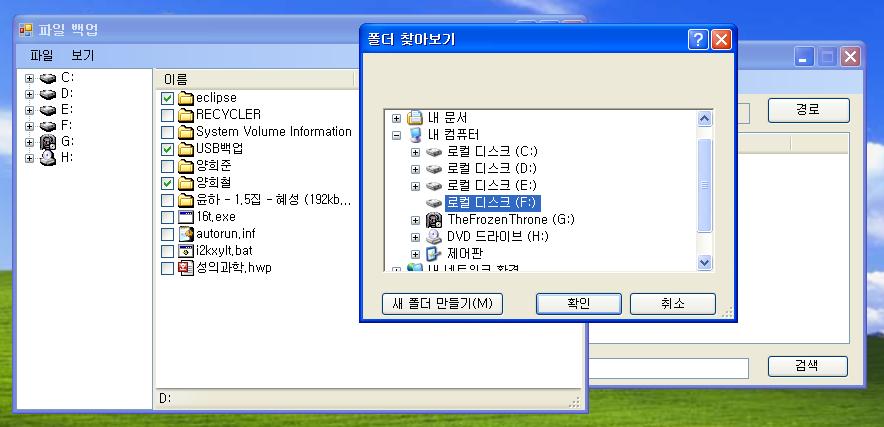
  메인 화면에서 폴더 몇 개를 선택하였고, 백업할 드라이브로 F드라이브를 선택하였다. 참고로 반드시 드라이브일 필요는 없다. 폴더도 루트로 가능하다.

사용자 삽입 이미지

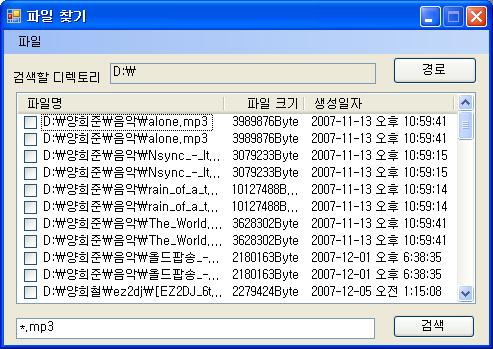
  특정한 파일만을 검색해서 백업하는 것도 가능하다.
 
  폼의 UI는 책을 보고 따라한 것이 대부분이다. 가장 중요한 핵심은 FileSystem 클래스인데, 이 클래스가 파일의 검색 및 백업을 가능하게 해 준다.
사용자 삽입 이미지
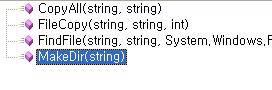
CopyAll() : 한 폴더의 내용을 카피한다.
FileCopy() : 파일을 카피한다.
FindFIle() : 지정한 경로에서의 파일을 검색한다.
MakeDir() : 디렉토리를 하위 디렉토리까지 만든다.

  다음은 FileSystem 클래스의 소스이다.

more..


FileCopy.zip

프로젝트의 소스

이올린에 북마크하기(0) 이올린에 추천하기(0)
Trackback 0 and Comment 0

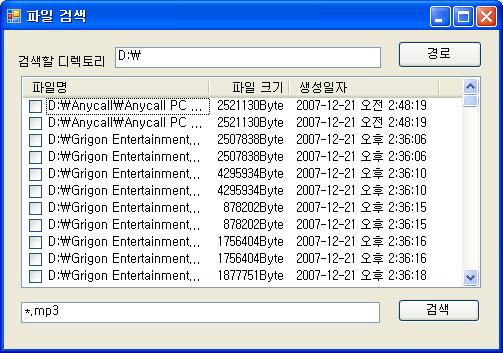
검색할 파일과 경로를 입력받아서 하위디렉토리까지 포함해서 경로를 검색하는 프로그램이다.

책에 있던 파일 찾기 예제를 조금 수정했다. 원래 예제는 하위 디렉토리는 검색하지 못해서 재귀를 이용해서 만들어 보았다.

사용자 삽입 이미지

다음은 가장 핵심인 FindFile() 메서드이다. 파라미터의 str은 찾을 파일(또는 형식)이고 dir은 경로이다.

        void FindFile(string str,string dir)
        {
            string tdir = dir.Trim();

            if (dir == "")
            {
                MessageBox.Show("검색할 디렉토리를 입력하세요");
                return;
            }

            string[] files_list;
            try
            {
                DirectoryInfo dinfo = new DirectoryInfo(tdir);
                DirectoryInfo[] subdir = dinfo.GetDirectories();


                files_list = Directory.GetFiles(tdir, str);

                for (int i = 0; i < files_list.Length; i++)
                {
                    ListViewItem item1 = new ListViewItem(files_list[i], 0);

                    FileInfo finfo = new FileInfo(files_list[i]);

                    item1.SubItems.Add(finfo.Length.ToString() + "Byte");
                    item1.SubItems.Add(finfo.CreationTime.ToString());

                    lst_View.Items.Add(item1);
                }

                foreach (DirectoryInfo d in subdir)
                {
                    tdir = d.FullName;
                    if((d.Attributes & FileAttributes.System) <= 0)
                    {
                        FindFile(str,tdir);

                        files_list = Directory.GetFiles(tdir, str);

                        for (int i = 0; i < files_list.Length; i++)
                        {
                            ListViewItem item1 = new ListViewItem(files_list[i], 0);

                            FileInfo finfo = new FileInfo(files_list[i]);

                            item1.SubItems.Add(finfo.Length.ToString() + "Byte");
                            item1.SubItems.Add(finfo.CreationTime.ToString());

                            lst_View.Items.Add(item1);
                        }
                    }

                }


            }
            catch(Exception e)
            {
               
                Console.WriteLine("파일 검색 중 예외 발생");
                Console.WriteLine(e.Message);
                Console.WriteLine(e.ToString());
                Console.WriteLine(tdir);
            }
        }

처음에 자꾸 예외가 발생해서 애를 많이 먹었다. 보니 System Volume Information부분에 권한도 없이 자꾸 접근해서 프로그램이 꺼지는 것이다. 그래서 데브피아에 알아봐서

if((d.Attributes & FileAttributes.System) <= 0)

이렇게 해서 System 관련 디렉토리는 접근하지 않게 해 놓았다.

FileSystem 클래스에 이놈도 넣어 놔야지.

이올린에 북마크하기(0) 이올린에 추천하기(0)
Trackback 0 and Comment 1

다음주에 작은아버지께 드릴 프로그램을 위해서 만들어 본 클래스이다.

백업 프로그램인데, 모든 파일을 경로와 파일명 그대로 다른 드라이브로 옮겨 주기 위해서 만들어 클래스들

그런데 이거 참 클래스 이름 짓기가 참 난감했다. 이걸 뭐라고 해줘야 하나..
그래서 그냥 어울리지는 않지만 FileSystem이라고 이름지엇다.

class FileSystem
{
    /*CopyAll : 특정 디렉토리의 모든 폴더와 파일을 다른 드라이브로 옮기는 메서드
     * args : 원본의 경로
     * drive : 옮길 드라이브
     */
    public void CopyAll(string args,string drive)
    {
        DirectoryInfo dinfo = new DirectoryInfo(args);
        string dest;
       
        if (dinfo.Exists)
        {
            DirectoryInfo[] dir = dinfo.GetDirectories();
           
            foreach (DirectoryInfo d in dir)
            {
                CopyAll(d.FullName,drive);
            }

            FileInfo []fs = dinfo.GetFiles();

            foreach (FileInfo f in fs)
            {
                dest = f.Directory.FullName;
                dest = dest.Remove(0, 1);
                dest = dest.Insert(0, drive);
                Console.WriteLine("Copy " + f.Name + " to " + dest);
                FileCopy(f.FullName, dest, 0);
            }
        }
    }
    /* MakeDir : 디렉토리를 만드는 메서드
     * dir : 만들 디렉토리의 경로
     */
    public void MakeDir(string dir)
    {
        DirectoryInfo dinfo = new DirectoryInfo(dir);

        if (dinfo.Exists == false)
        {
            dinfo.Create();
        }
    }


    /* FileCopy : 파일을 복사하는 함수
     * src : 복사할 파일의 경로 및 파일 이름
     * dest : 복사할 목적지
     * mode : 파일을 복사할것인지, 이동할것인지 설정
     */

    public void FileCopy(string src,string dest,int mode)
    {
        FileInfo finfo = new FileInfo(src);
        FileInfo fsrc;
        if (finfo.Exists == true)
        {
            MakeDir(dest);
            dest = dest + "\\" + finfo.Name;
            switch (mode)
            {
                case 0:
                      fsrc = finfo.CopyTo(dest, true);
                    break;
                case 1:
                    finfo.MoveTo(dest);
                    break;
            }
        }
    }  
}

이올린에 북마크하기(0) 이올린에 추천하기(0)
Trackback 0 and Comment 0

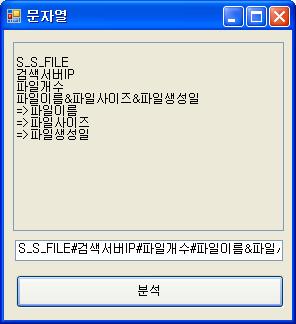
사용자 삽입 이미지

요즘 생각해보고 있는 프로그램중에 문자열 토큰 관련 기능이 필요해서 한번 책 예제를 따라해 봤다. 간단하다 텍스트 박스의 내용 중 #이랑 &을 가지고 토큰을 나눠주는 기능이다.

간단하니 버튼의 이벤트 핸들러만 소스를 올린다.

            string msg = txt_MSG.Text;
            string[] token = msg.Split('#');

            for (int i = 0; i < token.Length; i++)
            {
                if (token[i].IndexOf("&") > 0)
                {
                    txt_Info.AppendText("\r\n" + token[i]);
                    string[] subtoken = token[i].Split('&');
                    for (int j = 0; j < subtoken.Length; j++)
                    {
                        txt_Info.AppendText("\r\n=>" + subtoken[j]);
                    }
                }
                else
                {
                    txt_Info.AppendText("\r\n" + token[i]);
                }
            }

그리고 이것은 텍스트 박스 안의 내용

"S_S_FILE#검색서버IP#파일개수#파일이름&파일사이즈&파일생성일"

토큰으로 나누면 스크린샷과 같은 모습으로 출력된다.

기가막힌건.. C같았으면 토큰 저런거 저장할때 별 짓을 다해야 할텐데 여기서는
 string[] token = msg.Split('#');
이거 하나로 그냥 해결해 버렸다. 보고 기가 막혀서 웃음을 터뜨렸었다. 이렇게 간단하게 해결이 될 줄이야.. 역시 제공되는게 많다.

이올린에 북마크하기(0) 이올린에 추천하기(0)
Trackback 0 and Comment 0

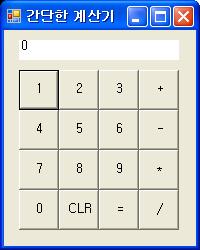
처음으로 만들어본 C# 프로그램이다.

뭐 별건 없고 그냥 간단한 사칙 연산이 되는 계산기를 만들어 봤다.

일단 소스


using System;
using System.Collections.Generic;
using System.Text;
using System.Windows.Forms;
using System.Drawing;


namespace Calculator
{
    class Program : Form
    {
        const int BTNSIZE = 40;
        const int CLRBTN = 10;
        const int ANSBTN = 11;

        const int BLK = 0;
        const int PLUS = 1;
        const int MIN = 2;
        const int MUL = 3;
        const int DIV = 4;

        int result = 0;
        int op = 0;

        bool answered = false;

        Button[] btn = new Button[16];
        Label lbl_display;

        int iButtonSize = 50;

        public Program()
        {
            int i = 0;
            int zero_x = 0;
            int zero_y = 0;
            char []name  = new char[4]{'+','-','*','/'};

            this.Text = "간단한 계산기";

            this.SetBounds(0, 0, BTNSIZE * 4 + 40, BTNSIZE * 5 + 50);
            lbl_display = new Label();
            lbl_display.Text = "0";
            lbl_display.BackColor = Color.White;
            lbl_display.SetBounds(15,10,160,20);


            this.Controls.Add(lbl_display);
            zero_y = 0;

            //'1~9'버튼

            for (i = 1; i <= 9; i++)
            {
                if (i % 3 == 1)
                {
                    zero_x = 15;
                    zero_y += BTNSIZE;
                }
                else
                {
                    zero_x += BTNSIZE;
                }
                    btn[i] = new Button();
                    btn[i].Text = i.ToString();
                    btn[i].SetBounds(zero_x, zero_y, BTNSIZE, BTNSIZE);
                    btn[i].Click += new EventHandler(BtnNumber_OnClick);
                this.Controls.Add(btn[i]);
            }

            //0버튼
            zero_x = 15;
            zero_y += BTNSIZE;
            btn[0] = new Button();
            btn[0].Text = "0";
            btn[0].SetBounds(zero_x, zero_y, BTNSIZE, BTNSIZE);
            btn[0].Click += new EventHandler(BtnNumber_OnClick);
            this.Controls.Add(btn[0]);

            //'Clear'버튼
            zero_x += BTNSIZE;
            btn[CLRBTN] = new Button();
            btn[CLRBTN].Text = "CLR";
            btn[CLRBTN].SetBounds(zero_x, zero_y, BTNSIZE, BTNSIZE);
            btn[CLRBTN].Click += new EventHandler(BtnCLR_OnClick);
            this.Controls.Add(btn[CLRBTN]);

            //'Answer'버튼
            zero_x += BTNSIZE;
            btn[ANSBTN] = new Button();
            btn[ANSBTN].Text = "=";
            btn[ANSBTN].SetBounds(zero_x, zero_y, BTNSIZE, BTNSIZE);
            btn[ANSBTN].Click += new EventHandler(BtnANS_OnClick);
            this.Controls.Add(btn[ANSBTN]);


            //연산자 버튼
            zero_x += BTNSIZE;
            zero_y = 0;
            for (i = 12; i < 16; i++)
            {
                zero_y += BTNSIZE;
                btn[i] = new Button();
                btn[i].Text = name[i - 12].ToString();
                btn[i].SetBounds(zero_x, zero_y, BTNSIZE, BTNSIZE);
                btn[i].Click += new EventHandler(BtnOp_OnClick);
                this.Controls.Add(btn[i]);
            }
           

        }
        private void BtnNumber_OnClick(object sender, EventArgs arg)
        {
            Button obj = (Button)sender;
            if (answered == true)
            {
                lbl_display.Text = "0";
                answered = false;
            }

            if (lbl_display.Text != "0")
            {
                lbl_display.Text += obj.Text;
            }
            else
            {
                lbl_display.Text = obj.Text;
            }

        }

        private void BtnCLR_OnClick(object sender, EventArgs arg)
        {
            result = 0;
            op = BLK;
            lbl_display.Text = "0";
        }

        private void BtnANS_OnClick(object sender, EventArgs arg)
        {
            switch (op)
            {
                case BLK:
                    return;
                    break;
                case PLUS:
                    result += Int32.Parse(lbl_display.Text);
                    break;
                case MIN:
                    result -= Int32.Parse(lbl_display.Text);
                    break;
                case MUL:
                    result *= Int32.Parse(lbl_display.Text);
                    break;
                case DIV:
                    if (result != 0)
                        result /= Int32.Parse(lbl_display.Text);
                    else
                    {
                        lbl_display.Text = "Error!";
                    }
                    break;

            }
            answered = true;
            lbl_display.Text = result.ToString();
        }
        private void BtnOp_OnClick(object sender, EventArgs arg)
        {
            Button obj = (Button)sender;
            switch (obj.Text)
            {
                case "+":
                    op = PLUS;
                    break;
                case "-":
                    op = MIN;
                    break;
                case "*":
                    op = MUL;
                    break;
                case "/":
                    op = DIV;
                    break;
            }
            result = Int32.Parse(lbl_display.Text);
            Console.WriteLine(op);
            lbl_display.Text = "0";
        }
        static void Main(string[] args)
        {
            Application.Run(new Program());
        }
    }
}

사용자 삽입 이미지


생각해 보니까 이벤트 관련 함수 안에 모든 내용을 다 넣어 버렸다. 그리 좋지 않은 방식인데.. 윈도우 프로그래밍쪽만 신경쓰다 보니 계산기의 클래스화도 제대로 신경 못쓰고 그러다보니 어떤 오류가 날지도 제대로 모르겠다. 다음에는 신경써서 만들어 보아야 겠다.

이올린에 북마크하기(0) 이올린에 추천하기(0)
Trackback 0 and Comment 0

using System;
using System.Windows.Forms;
using System.Drawing;


class Program : Form
{
    Button btn = null;
    ListBox lstbox = null;
    Image image = null;
    public Program()
    {
        this.Text = "Graphics 개체 얻기";
        btn = new Button();
        btn.Text = "버튼 위에 GDI+ 출력";
        btn.SetBounds(10, 10, 200, 100);
        btn.Click += new EventHandler(btn_Click);
        this.Controls.Add(btn);

        lstbox = new ListBox();
        lstbox.SetBounds(210, 110, 410, 310);
        lstbox.Items.Add("사과");
        lstbox.Items.Add("포도");
        lstbox.Items.Add("수박");
        lstbox.DrawItem += new System.Windows.Forms.DrawItemEventHandler(lstbox_DrawItem);
        lstbox.MeasureItem += new System.Windows.Forms.MeasureItemEventHandler(lstbox_MeasureItem);

        this.Load += new EventHandler(On_Load);
        this.Controls.Add(lstbox);
    }

    protected override void OnPaint(PaintEventArgs e)
    {
        Graphics grfx = e.Graphics;
        if (image != null)
            grfx.DrawImage(image, 0, 0);
    }

    static void Main(string[] args)
    {
        Application.Run(new Program());
    }

    public void btn_Click(object sender, EventArgs e)
    {
        Graphics grfx = btn.CreateGraphics();
        grfx.FillRectangle(new SolidBrush(Color.Blue), btn.ClientRectangle);
        grfx.Dispose();

        Image imageFile = Image.FromFile("C:\\Documents and Settings\\All Users\\Documents\\My Pictures\\그림 샘플\\겨울.jpg");
        grfx =  Graphics.FromImage(imageFile);

        Font font = new Font("돋음",20);
        Brush brush = Brushes.Pink;

        grfx.DrawString("이미지에 글자 쓰기", font, brush, 10, 10);
        grfx.Dispose();

        imageFile.Save("sample.gif");
        this.image = Image.FromFile("sample.gif");
        this.Invalidate(this.ClientRectangle);
  
    }

    private void On_Load(object sender, EventArgs e)
    {
        lstbox.DrawMode = DrawMode.OwnerDrawFixed;
    }

    private void lstbox_MeasureItem(object sender, MeasureItemEventArgs e)
    {
        Graphics g = e.Graphics;
        Console.WriteLine("{0} : MeasureItem 이벤트 실행", e.ToString());
    }

    private void lstbox_DrawItem(object sender, DrawItemEventArgs e)
    {
        Graphics g = e.Graphics;
        Brush brush = Brushes.Black;

        switch(e.Index)
        {
            case 0:
                brush = Brushes.Red;
                break;
            case 1:
                brush = Brushes.Violet;
                break;
                case 2:
                brush = Brushes.Green;
                break;
        }

        g.DrawString(lstbox.Items[e.Index].ToString(), e.Font, brush, e.Bounds, StringFormat.GenericDefault);

        Console.WriteLine("{0} : DrawItem 이벤트 실행", e.ToString());
    }
}

소스가 좀 많다. 이외에도 몇가지가 있는데, 한 소스에 담기가 좀 번거로워서 한번에 담을 수 있는것만 해 놓았다.

주석이 없어서 소스 분석이 좀 어렵겠다. 주석 습관 들여야 하는데..

사용한 방법은 다음과 같다.

1. Control Class의 CreateGraphics메서드 이용
2. ListBox 등의 컨트롤에서 제공하는 MeasureItem이나 DrawItem 이벤트 등을 이용한 방법
3. Graphics.FromImage() 메서드 이용
4. OnPaint()메서드 override 해서 사용


이외에도 Paint이벤트 상속받기, PrintPage이벤트 핸들러,Win33API 사용하기 등의 방법이 있다.

이올린에 북마크하기(0) 이올린에 추천하기(0)
Trackback 0 and Comment 0

using System;
using System.Windows.Forms;

class Program : Form
{
    public Program(string strText)
    {
        this.Text = strText;
        this.Load += new System.EventHandler(this.Form_Load);
        this.FormClosed += new System.Windows.Forms.FormClosedEventHandler(this.Form_Closed);
        this.MouseClick += new System.Windows.Forms.MouseEventHandler(this.Form_Click);
        this.MouseEnter += new System.EventHandler(this.Form_MouseEnter);
        this.Show();
    }

    public static void Main(string[] args)
    {
        Application.Run(new Program("이벤트!"));
    }

    private void Form_Load(object sender, System.EventArgs e)
    {
        Console.WriteLine("윈도우가 Load됩니다.");
    }
    private void Form_Closed(object sender, System.EventArgs e)
    {
        Console.WriteLine("윈도우가 Closed됩니다.");
    }

    private void Form_Click(object sender, System.Windows.Forms.MouseEventArgs e)
    {
        Console.WriteLine(e.Button);
    }

    private void Form_MouseEnter(object sender, System.EventArgs e)
    {
        Console.WriteLine("Mouse Entered!!");
    }

   
}

  실제 실행 결과는 여기서 이벤트가 발생하면 콘솔에 그에 대한 내용이 출력된다. 대표적으로 Load와 Closed이벤트가 있겠다. MouseEnter은 마우스가 폼에 진입했을때 발생하는 이벤트인데, 상당히 흥미로운 이벤트였다. 직접 구현했으면 복잡했을 것을 이렇게 간단히 지원해주니 좋을 따름.
 
  Click이벤트를 보면 두번째 인자가 좀 다른것을 볼 수 있다. System.Windows.Forms.MouseEventArgs인자의 Button속성은 누른 마우스 버튼이 무엇인지를 알려 준다.

  각 이벤트마다 등록해줘야 할 이벤트 등록 클래스가 각각 다르다. 그러므로 중요한것은 따로 암기해 두고, 필요할때는 MSDN 등을 통해 검색해 보고 사용해야 할 것이다. 예를 들면 Load와 FormClosed이벤트의 등록 클래스의 형태는 다르다.

  이벤트의 등록 방법은 다음과 같다.

[이벤트 이름] +- new System.EventHandler(메서드);

  이벤트의 제거는 -=를 이용해 주면 되고, 메서드는 알아서 만들어서 넣어 주면 되지만 그 형태는 다음과 같다.

private void 메서드이름(object sender,System.EventArgs e){}

물론 EventArgs는 MouseClick이벤트를 보듯이 다를 수도 있지만 대개 저런 형태이다.

sender를 다룰때는 어떤 특정한 컨트롤일 경우에는 그 컨트롤로 캐스팅을 시켜주는 경우가 많다. 예를 들어 앞 글에서 버튼을 다룰때 이런식의 코드가 있었다.

(button)sender

이렇게 object를 button으로 캐스팅을 하고 사용해 줘야 한다.

이올린에 북마크하기(0) 이올린에 추천하기(0)
Trackback 0 and Comment 2

사용자 삽입 이미지


using System;
using System.Windows.Forms;

class MyClass : Form
{
    Button[] btn = new Button[4];
    Form[] newMDICHild = new Form[10];
    string[] strData = { "수평", "수직", "계단식", "아이콘" };

    public MyClass(string strText)
    {
        this.Text = strText;
        this.IsMdiContainer = true;
        this.Load += new EventHandler(this.Form_Load);
        this.Closed += new EventHandler(this.Form_Closed);

        for (int i = 0; i < 4; i++)
        {
            btn[i] = new Button();
&nbs